
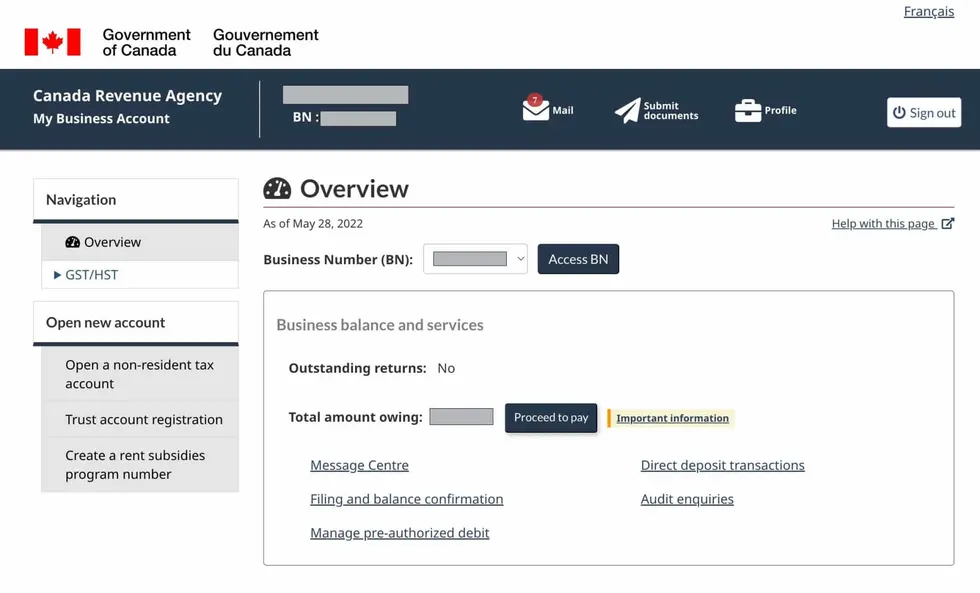
Most Canadian business owners have dealt with the Canada Revenue Agency (CRA) at some point or another. Thankfully today’s technology makes it easier for business owners and their authorized representatives to access corporate income tax, payroll, GST/HST and excise tax and duty information using the “CRA My Business Account”. Below we explain how to set up your account and allow third-party access to your CRA information to improve efficiency and accuracy in CRA reporting throughout your fiscal year.
Creating a “CRA My Business Account”
Only business owners can use the CRA My Business Account. We recommend starting the process during business hours. To get started, go to this URL and have a phone, your social insurance number, business number, and most recent tax return available. You’ll then need to choose to set up your account access using either a third party or a CRA username and password. Although both methods are secure and provide the same level of access, there are a few distinct differences in the setup.
1. Third-Party Login
Often the fastest of the two setup methods, this requires online banking with one of the partnered financial institutions.
Step 1: Select Option 1 to Sign-In using your online banking information.
Step 2: Choose your bank from the provided list of options. If your bank is not listed, you’ll need to use the CRA Username & Password option.
Step 3: Enter your online banking login information.
Step 4: Validate your identity by entering your social insurance number.
Step 5: Validate your identity by entering the requested personal information. This may require your recent notice of assessment.
Step 6: Request a security code by email (fastest) or snail mail. To request the emailed code, call the CRA (1-800-959-8281) at this step to confirm your email address.
Step 7: Once you’ve received your security code, return to the third-party login page, select your bank and re-enter your online banking login information. You will be prompted to enter or request a security code. Enter the security code.
Step 8: Enter your nine-digit business number to link your access to your business. That’s it! You can now sign in to your CRA My Business Account using your online banking information. You can choose multi-factor authentication, such as sending a code to your phone, once your account is set up. Visit the CRA’a website to learn more about multi-factor authentication.
2. CRA Username & Password
If you don’t use online banking at one of the partner institutions, or you prefer to keep your online accounts separate, this sign-in option may be right for you.
Step 1: Select Option 2 for CRA Username and Password.
Step 2: Select “CRA Register” (beside the “Sign In” button).
Step 3: Validate your identity by entering your social insurance number.
Step 4: Validate your identity by entering the requested personal information. This may require your recent notice of assessment.
Step 5: Request a security code by email (fastest) or snail mail. To request the emailed code, call the CRA (1-800-959-8281) at this step to confirm your email address.
Step 6: Create your username and password. Be sure to follow the provided parameters.
Step 7: Select and enter responses to a series of security questions. These may be used to verify your login or to recover your account.
Step 8: Once you’ve received your security code, return to the CRA login page, select CRA sign-in, and enter your username and password. You will be prompted to enter or request a security code. Enter the security code.
Step 9: Enter your nine-digit business number to link your access to your business. You are now connected to your CRA My Business Account. The Canada Revenue Agency has also published a helpful visual that can be viewed on YouTube: https://youtu.be/6o6w4yUZnNs
Third-Party Access
There are only a small number of professionals who should be authorized representatives on your CRA My Business Account, the most common being your accountant. Once signed into your account, you can send access or approve a pending access request. We explain how below.
Authorize A Representative
Step 1: Click on “Profile”, located in the header banner.
Step 2: Scroll down until you see the section titled “Authorized Representatives” and select “Manage Authorized Representatives”
Step 3: Choose “Authorize a representative” to initiate and send access to a third party.
Step 4: To send access, you must enter their unique ID number in the field “RepID, GroupID, or BN”.
Step 5: Choose the level of authorization and enter an expiry date (optional). Most accountants are provided with level 2 access, Update and view.
Step 6: Select which accounts the representative will have access to and click “Next” to proceed. These include Income Tax, Payroll and GST.
Step 7: Review your selections and confirm to send the access to your representative.
Approve an Access Request
Step 1: Click on “Profile”, located in the header banner.
Step 2: Scroll down until you see the section titled “Authorized Representatives” and select “Manage Authorized Representatives”
Step 3: Select “Confirm pending authorizations” to allow access to a party who has already requested access to your business information. It’s important to note that requests can be delayed a couple of days but once approved, access can be immediate.
At McNabb Lucuk LLP, we know your time is valuable. Providing your accountant with access to your business CRA account allows them to deal with any audits on your behalf, look up account information, and file GST and payroll information on your behalf. Give us a call today at 780-539-3400 to make us part of your business team.